
Discover Ebooks.com, the oldest independent ebook store on the Web
Welcome to Bring Your Own Books, a series in which we showcase websites that provide ebooks, comics and audiobooks that you can read with Thorium Reader. Today, we're taking a look at Ebooks.com, a prominent digital bookstore offering a vast catalogue across genres and formats.
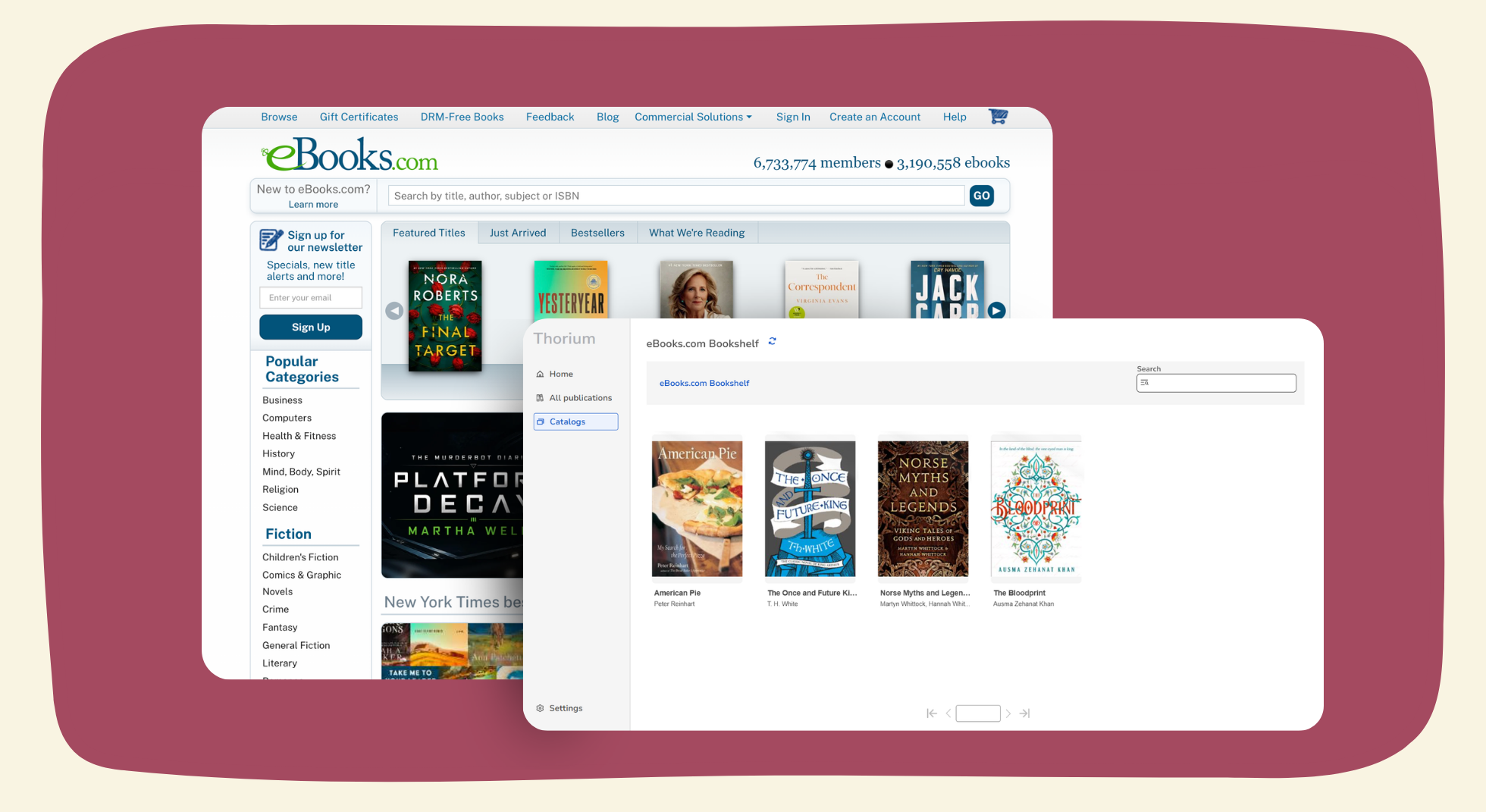
Ebooks.com, proudly independent since 2000
The first independent ebook store on the Web
Ebooks.com was launched in 2000 by two life-long Australian booksellers Stephen and Trudy Cole. At the time, digital publications and e-reading devices were novelties in the book market, still not widely adopted like they are nowadays. Since then, the website has grown and now sells a catalogue of millions of ebooks everywhere around the globe (even including Antarctica and the International Space Station).
Ebooks.com hosts millions of publications, ranging from fiction bestsellers to textbooks. They also offer various services to support publishers and authors, helping them sell their titles in digital formats.
A legacy of ethical values and commitment
Ebooks.com was built on strong ethical beliefs and business practices. The company is known for both its integrity and its transparency regarding the environmental impact of the publishing industry, both in print and digital form. The Ethical Consumer bookshop guides, which was last updated on October 3rd, 2025, ranks Ebooks.com as the most ethical ebook seller and the second most ethical bookstore overall in a list of 27 businesses. Today, Ebooks.com is considered one of the best alternatives to Amazon and its various book-selling brands.
Reading books from Ebooks.com on Thorium Reader
A partnership for better reading technologies
In 2026, Ebooks.com announced a new partnership with the European Digital Reading Lab to reaffirm their investment in better reading technology. This partnership starts with the adoption of LCP, EDRLab's interoperable and accessible DRM solution. With this switch to LCP, all ebooks purchased from the Ebooks.com can be downloaded and read on Thorium Reader. On July 1st, 2026, Ebooks.com even released an article recommending the use of Thorium Reader to read their books on desktop. The decision to promote the app as an alternative to Adobe Digital Editions is aligned with Ebooks.com's ambition to work towards a more interoperable and accessible reading ecosystem. Currently, customers can choose between two different ways to read books bought on Ebooks.com on the app: download their ebooks or add their bookshelf as a catalog.
Downloading files from Ebooks.com in Thorium Reader
Everything that you can buy on Ebooks.com is available either in EPUB or PDF. Both formats are fully compatible with Thorium Reader on all platforms, including LCP protected files.
You can either download an ebook after a purchase or access your bookshelf from your Ebooks.com account to re-download past purchases.
While the Ebooks.com download page separates the download process based on the type of device that you're using, make sure that you always click on "Download to Windows or Mac" if you'd like to read in Thorium Reader, even if you're on an iPhone or an iPad.
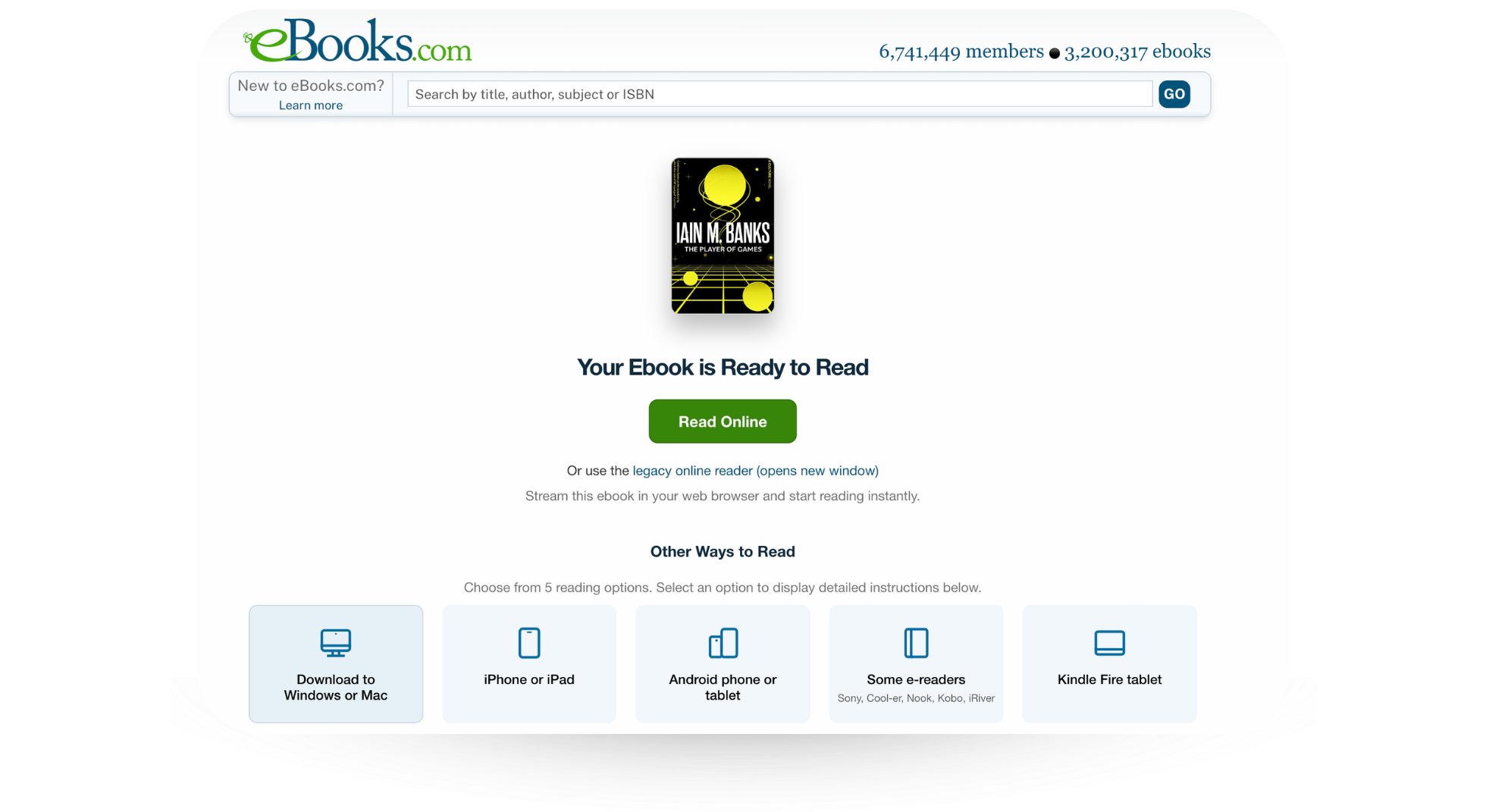
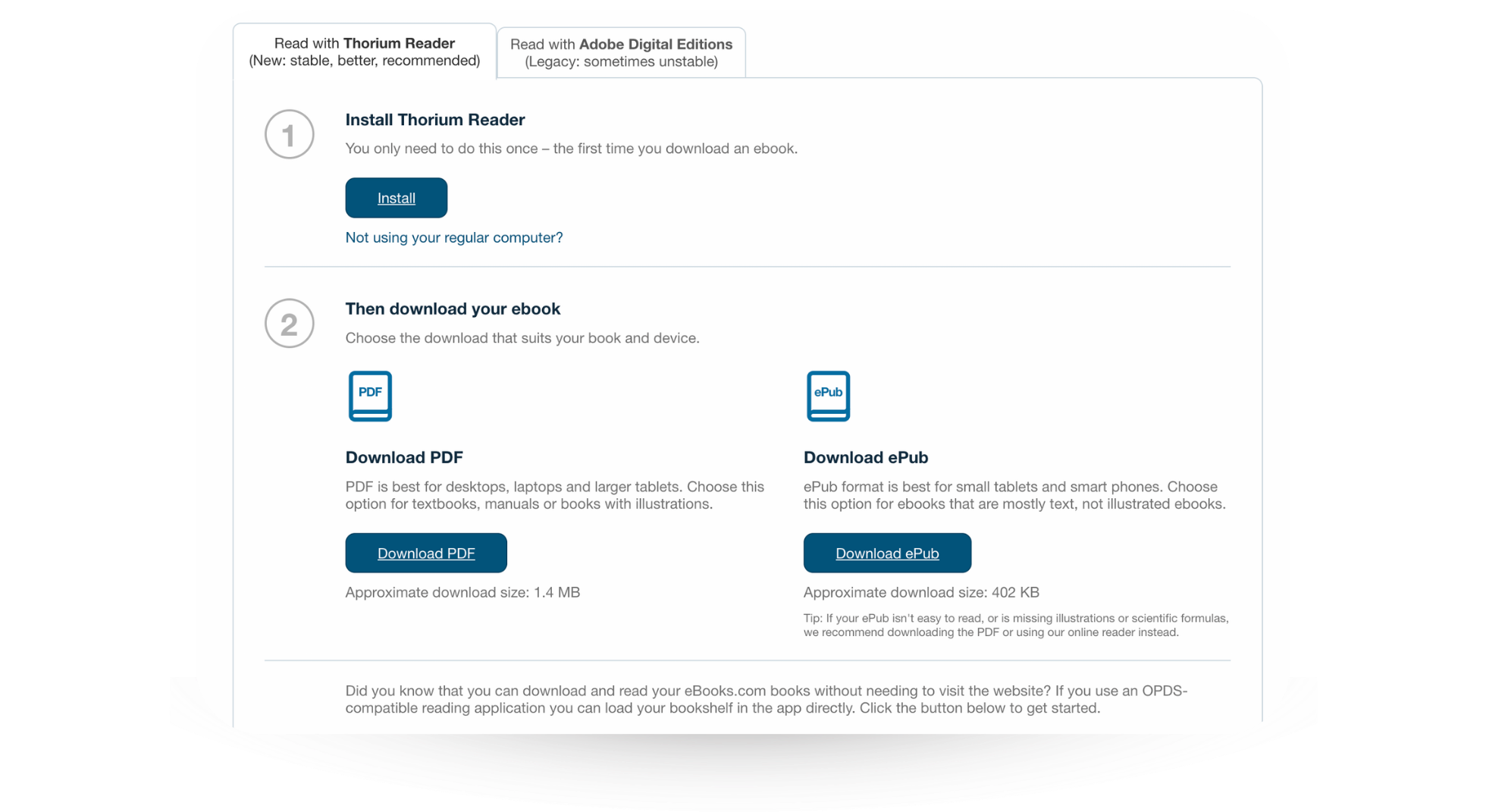
Click on "Download ePub" or "Download PDF" based on your preference. This will automatically start the download of your ebook and display a new page with additional information.
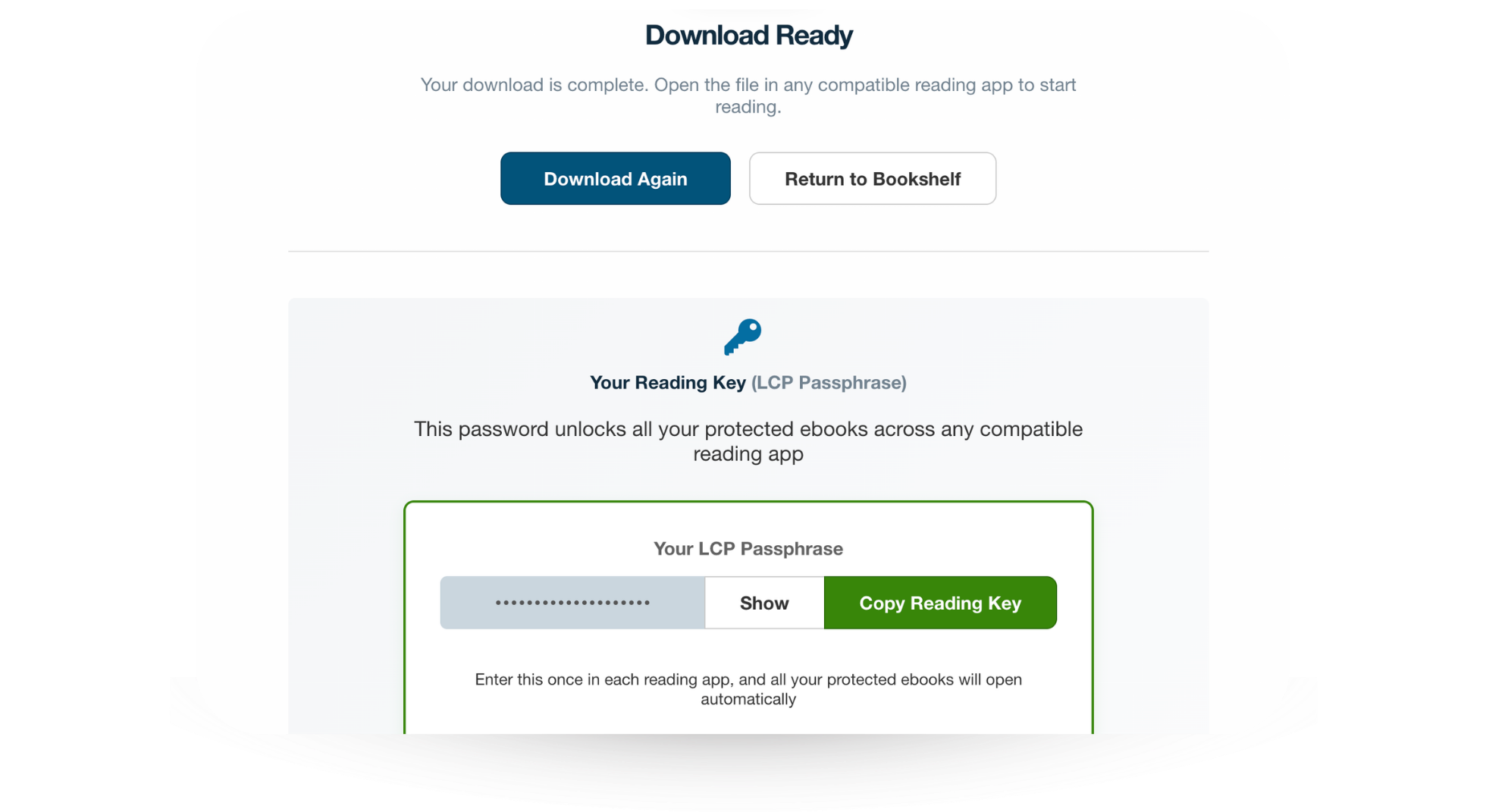
If the file is LCP-protected and this is your first time downloading an ebook from Ebooks.com into Thorium Reader, make sure to scroll down to the section called "Your reading key" to show and copy your LCP passphrase.
Now that you have your file and your LCP passphrase, you can import your ebook into Thorium Reader (follow our guides for desktop or for iOS/iPadOS).
The first time that you read your ebook, you'll see a dialog asking for an LCP passphrase. Enter the passphrase or paste it into the dialog to start reading. This is a one-time process, Thorium Reader won't require your passphrase for future downloads.
If you forgot your passphrase, make sure to connect to your account on Ebooks.com, click on your email address in the top bar and select "Reading Key".
Adding Ebooks.com to Thorium Reader on iOS and iPadOS
If you'd like to add Ebooks.com to Thorium Reader on iOS and iPadOS, follow this link:
It will automatically add the Ebooks.com website in your list of catalogs.
Log in to buy new ebooks or access your bookshelf to download your previous purchases.
As an alternative, you can manually add it as well. You can use:
- https://www.ebooks.com if you'd like to point to the homepage
- https://www.ebooks.com/account/bookshelf/ if you'd like to go straight to your bookshelf
Adding Ebooks.com to Thorium Reader on Windows, macOS and Linux
You can access your Ebooks.com bookshelf from Thorium Reader to easily download all of your purchases without the need to import files manually.
This feature is currently limited to the desktop version of Thorium Reader but will become available in our iOS/iPadOS app later in 2026.
To add Ebooks.com automatically, follow these steps:
- Log in to your Ebooks.com account, go to your Bookshelf tab and find the "Access OPDS Feed" button below your ebooks ;
- Click on "Open OPDS Feed" ;
- A browser confirmation message may show up, please confirm that you'd like to open with Thorium Reader ;
- Thorium Reader will be opened automatically and show a login page for Ebooks.com ;
- Complete the login and you'll be redirected back to Thorium's Reader homepage ;
- Click on Catalogs in the sidebar and select the catalog to see your bookshelf ;
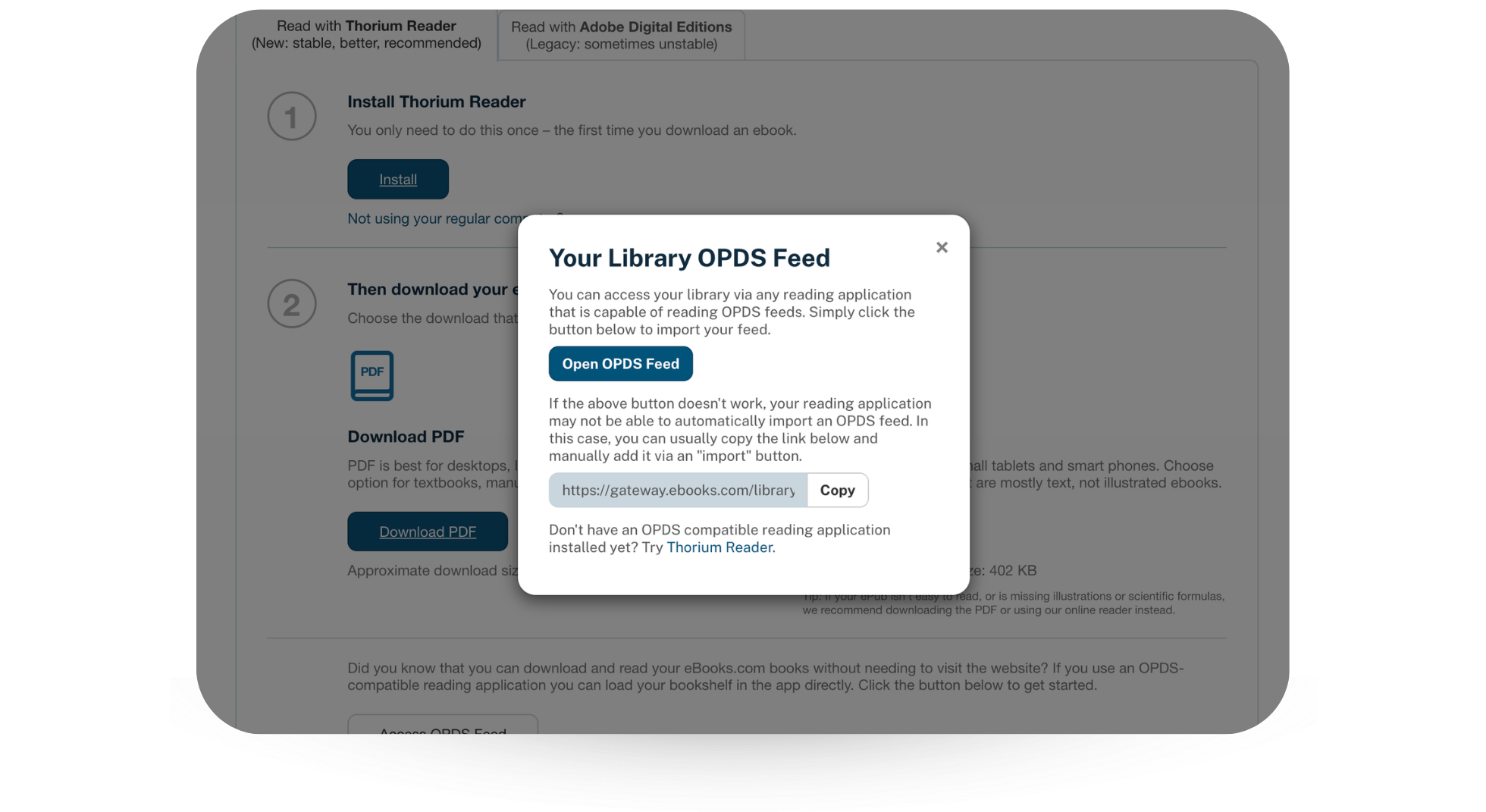
If the automated method for adding a catalog doesn't work, please follow these steps to manually add it:
- Log in to your Ebooks.com account, go to your Bookshelf tab and find the "Access OPDS Feed" button below your ebooks ;
- In the pop-up screen that shows up, select the "Copy" button to copy the link to your clipboard ;
- Open Thorium Reader on desktop, go to the Catalogs tab and click on the "Add OPDS feed" button in the top right corner ;
- Give the feed a recognizable name (like "Ebooks.com Bookshelf" for example), then paste the copied link in to the Link field ;
- Once you see your eBooks.com OPDS Feed listed in Catalogs, click on it: Thorium Reader will now display your eBooks.com bookshelf.
A dedicated page is available at Ebooks.com to guide you through these steps as well.
Need help?
If you are experiencing any difficulty, don't hesitate to send us a message.


